Connecting TX9 TV stick to WIFI
To connect the TX9 TV stick to Wi-Fi, please follow the steps below:
1) Use the remote controller that came with TX9 TV stick
2) Press the back button to return to the main menu and go to settings icon as shown.
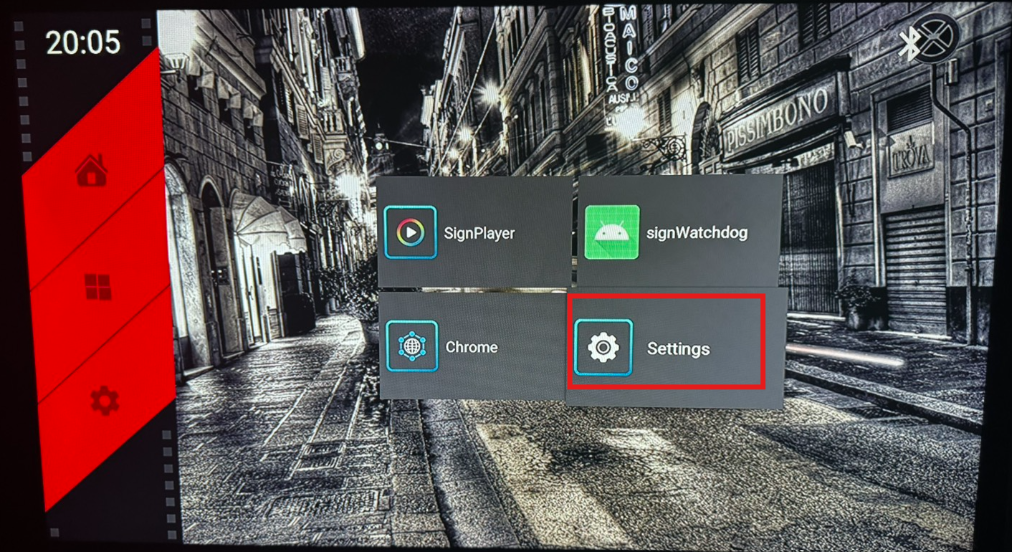
3) Network & Internet → Wi-Fi, then connect to your Wi-Fi network.
4) Once connected, press the Back button to return to the main menu.
5) Open the SignPlayer app. It will automatically download and display the updated content.
Related Articles
WIFI Not Connecting, Keep saying Saved
If your WiFi connection shows "Saved" instead of "Connected," try these troubleshooting steps: Ensure no Ethernet cable is attached to the media player if you’re trying to connect via WiFi. Double-check that you’re entering the correct WiFi password. ...TX9 Media Player (Setup Instructions)
VIDEO LINK FOR SETUP: https://edisplay.egnyte.com/dl/5COKv0KDW3Connecting a Power Adapter to the TX9 Media Stick
The TX9 Media Stick can be powered using a standard 5V USB power adapter, typically the same type used for smartphones or tablets. We recommend using an adapter that provides at least 5V/2A (2000mA) of output for stable performance. ⚠️ Note: Using a ...My Media Player keeps Restarting?
Please power on the media player with the power adapter that came in the box and it will not reboot again. Multiple reboots is a known behavior if you are powering the media player via a USB cable from TV, this is not recommended because sometimes ...How to Register Media Player with the Display/TV Screen?
If you are doing it for the first time: Plug in Signage Droid Z5 media player into the HDMI port of the screen, connect external keyboard and mouse into the USB ports of the media player Plug in Ethernet/CAT5 cable into media player and ensure the ...